WiFi Network Screen
The WiFi Networks screen shows a list of all WiFi signals as sensed by the device.
For more information about WiFi signals sensing see WiFi Scanning.
Screen Components
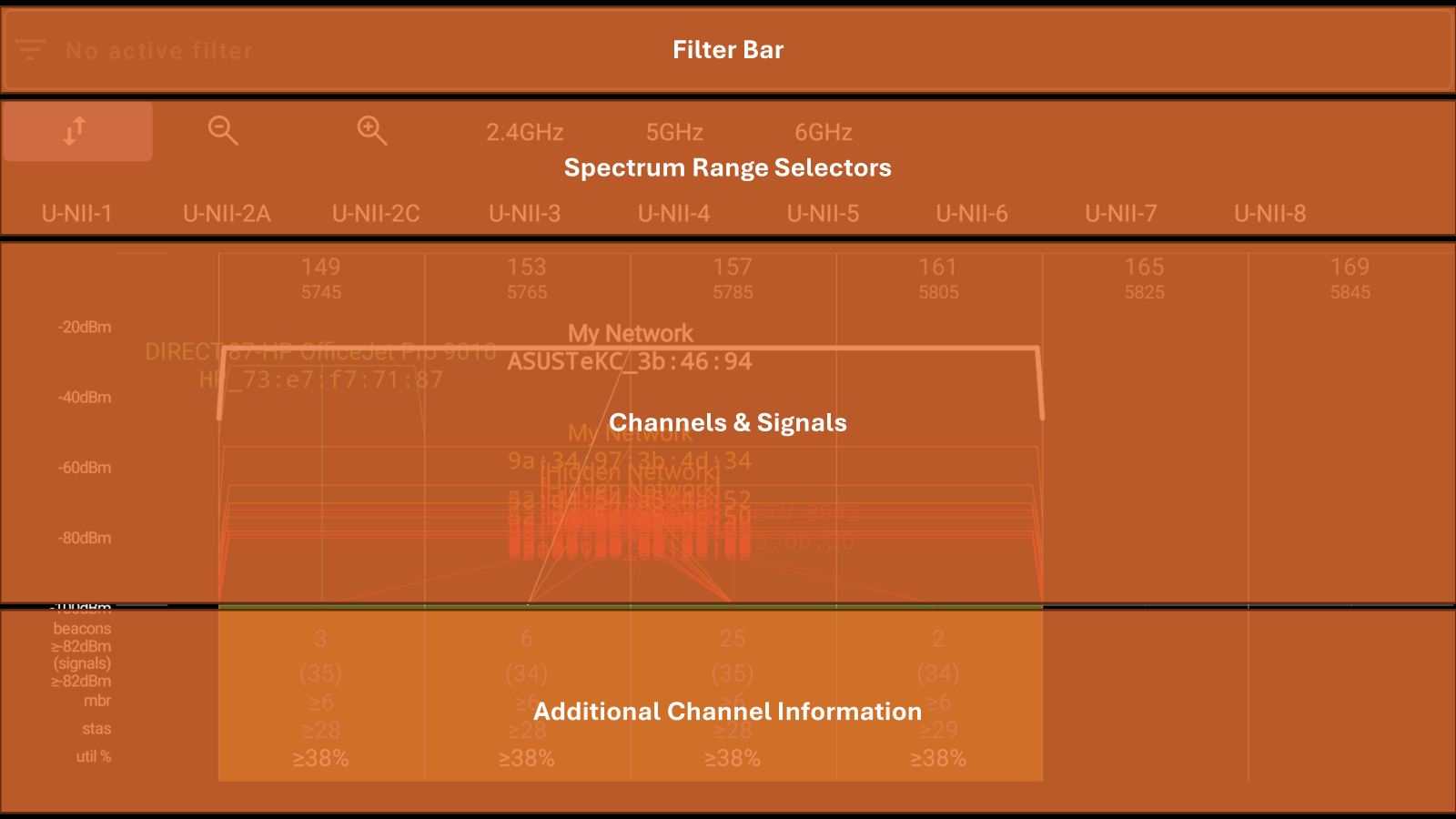
Filter Bar
The filter bar show what signals are currently filtered-in.
- Signals filtered-in will be displayed normally
- Signals filtered-out will be displayed according to the filter behavior setting (dimmed or not shown at all)
Touch or click the filter bar to configure or reset the filter.
For more information see WiFi Signals Filter
Spectrum Range Selectors
Touching or clicking a spectrum range selector will modify the currently shown spectrum range:
- Associated signal: a range of 10MHz around the currently associated WiFi signal
- Zoom-In
- Zoom-Out
- 2.4GHz: 2400..2500 MHz
- 5GHz: 5000..6000 MHz
- 6GHz: 5925..7125 MHz
- U-NII-x: spectrum bands as defined by the FCC
It is also possible to used touch gestures to directly modify the range displayed: panning, zooming-in and zooming out.
Channels & Signals
Showing the spectral masks of all WiFi signals that use any of the channels in the current spectrum range:
- The associated signal mask is shown in heavy white
- All other signals are shown in light semi-transparent colors
For each signal:
- SSID is shown above the mask
- BSSID is shown below the mask
In addition to the spectral mask, a thin line is drawn from the center frequency of the signal to the center frequency of the beacon (at -100dBm). When multiple such lines are crossing each other - it is a visual indication of ACI/OBSS.
Additional Channel Information
The following additional information is displayed in the additional channel information area, for every channel:
- Beacons: the number of all signals using the channel as the primary channel (i.e., as a beacon)
- (signals): the number of all signals using the channel (either as the primary or as a secondary channel)
- mbr: the smallest minimal basic rate reported by any signal using the channel
- stas: a sum of all STAs reported by all signals using the channel; will not be shown if no signal reported load information
- util %: the largest airtime utilization reported by any signal using the channel (the utilization % impacts the background color of the additional channel information area); will not be shown if no signals reported load information
Note that the beacons and signals numbers are adjusted to take into account MBSSID IEs (i.e., only a single signal is counted instead of all reported multiple BSSIDs)
Also note that beacons and signals are counted only if their signal level is at least as the configured thresholds.
Settings
In Settings ► Operational Settings ► WiFi Channels:
- For CCI counting: minimal RSSI for counting a primary (beacon) signal
- For ACI/OBSS counting: minimal RSSI for counting a secondary signal
In Settings ► Screen Specific Settings ► WiFi Networks and Signals:
- Resolve BSSID MAC: if enabled (default), the BSSID shown will include name resolution information. If disabled - showing a plain MAC address of the BSSID.
In Settings ► Screen Specific Settings ► WiFi Channels:
- Show IEEE spectral mask: if enabled, use IEEE elaborate spectral masks to better determine ACI. If disabled (default) - use a rudimentary approximate mask.